

Banners and ad slots
Show banners or Google AdSense in the header, footer, sidebar and between listings, sell banner space to advertisers and publish your ads.txt.
Advertising is one of the simplest ways to earn from a marketplace with steady traffic. You can sell banner space directly to local businesses, or let a network such as Google AdSense fill it for you. Yclas gives you several places to put a banner, all without editing your theme.
Where you can place banners
| Slot | Where it shows | Where to set it |
|---|---|---|
| Header banner | At the top of every page, under the header. | Design › Theme Options › General: Header banner, allows HTML |
| Home page only | On the home page, under the search area. | Theme Options › Homepage: Homepage Only Header, allows HTML |
| Between listings | At a random position among the results on category and search pages. | Theme Options › Listing: Listing random position banner, allows HTML |
| Footer banner | At the top of the footer, on every page. | Theme Options › General: Footer banner, allows HTML |
| Sidebar, footer or post-a-listing page | Wherever you place the widget. | Design › Widgets: an Image widget or a Text widget |
| Nova ad slots | Top of every page, every few listings in results, and on each listing page. | Design › Widgets: the three Ad slot areas. See Ad slots in Nova. |
| Whole site, automatic | Wherever the ad network decides. | Design › Custom code: Code in the page head (for example AdSense auto ads) |
The names above are Nova’s. Most older themes have the same banner fields in their Theme Options; a few name them HTML code for header banner and HTML code for footer banner.
Add an image banner
The simplest banner is a picture that links to the advertiser.
- Put the banner image online and copy its address. An image you’ve inserted in one of your pages appears under Media › Image library, where Copy URL gives you the address.
- Go to Design › Widgets and add an Image widget.
- Choose where it goes (
sidebarorfooter), paste the address into Enter the image URL and the advertiser’s address into URL to redirect when clicked (Optional). - Click Add widget.
For the header, footer or between-listings slots, paste the banner as HTML instead:
<a href="https://www.advertiser-example.com" target="_blank" rel="sponsored noopener">
  <img src="https://www.example.com/banner-728x90.png" alt="Advertiser name"
       style="max-width:100%;height:auto">
</a>
max-width:100% keeps the banner from overflowing on phones, and rel="sponsored" tells search engines it’s a
paid link.
Common banner sizes are 728 × 90 px for the header and footer, and 300 × 250 px for the sidebar. A banner wider than the screen is scaled down on phones, so keep the text on it large.
Ad slots in Nova
The Nova theme has three widget areas made for banners and ad code. Put a Text widget with your banner HTML or AdSense code in any of them:
| Widget area | Code name | Where it shows |
|---|---|---|
| Ad slot: top of every page | ad_header |
At the top of every page, above the content. |
| Ad slot: between listings | ad_listings |
In the results on category and search pages, once every few listings. |
| Ad slot: listing page | ad_page |
Next to the details of each listing. |
- Go to Design › Widgets.
- In Add a widget, find the Text widget and click + Add.
- In Where do you want the widget displayed?, choose the slot by its code name, for example
ad_listings. - Paste your banner HTML or ad code and click Add widget.
An empty slot shows nothing. To choose how often the slot between listings appears, go to Make money, step 2, Ad slots, and set Between listings: one slot every (8 listings unless you change it; 0 turns it off, and hides banners advertisers bought for that slot too). The same panel shows which slots are in use, with a link to Widgets. If bought banners are running between listings, setting it to 0 shows a warning with how many, because advertisers have paid for them.
If your cookie banner asks visitors to choose cookie categories, the ad slots only show to visitors who accept marketing cookies.
Sell banners to advertisers
Instead of placing each local advertiser’s banner yourself, let them buy it: with Sell banners on, anyone signed in can buy a banner for your ad slots, pay for it online and see its views and clicks. You only approve it.
- Click Make money in the sidebar and continue to step 2, What sellers pay for.
- Switch on Sell banners and set the Price per week (suggested: 20 in your site’s currency).
- Finish the steps and click Save and switch on.
- Add a link to the Advertise page, at
/banneron your domain, to your menu or footer, so advertisers find it.
Banners need a payment method and are shown by the Nova theme.
How an advertiser buys a banner
On the Advertise page, under Buy a banner, the advertiser chooses:
| Field | Choices |
|---|---|
| Where | Top of every page (728 × 90 px), Between listings (300 × 250 px) or On listing pages (300 × 250 px). |
| Only on one category (optional) | Every page, or one top category: the banner then shows only on that category’s pages. |
| Picture | The banner image. |
| Links to | The advertiser’s web address. |
| Weeks | 1 to 12 weeks, at your price per week. |
They click Continue to payment and pay like any other order (the product is Banner in Orders). The same page lists their banners with their status and, once live, about how many views and clicks each has had.
Approve or reject a banner
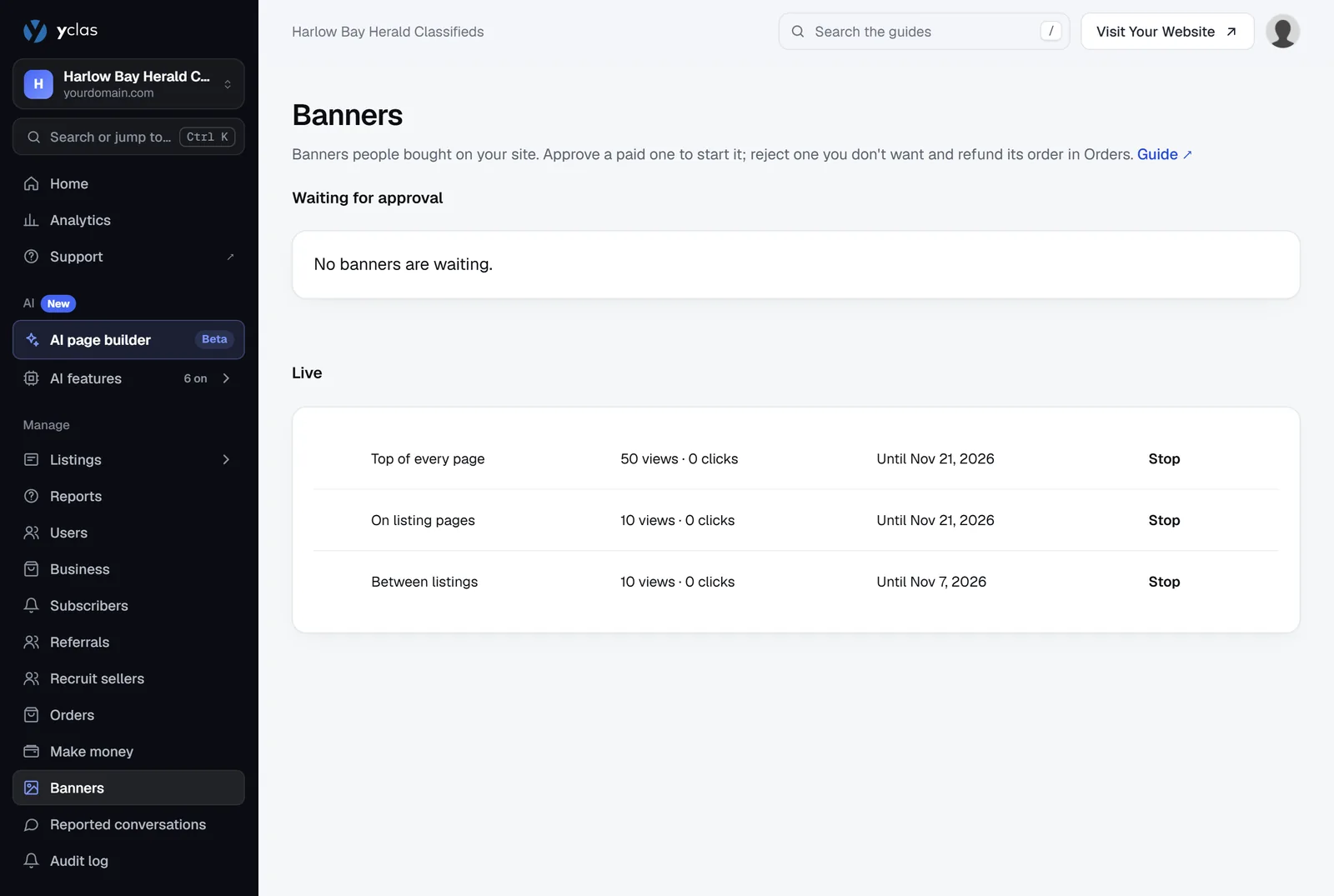
When a banner is paid for, you get an email (A banner is waiting for your approval), and your dashboard shows Banners to approve under Needs your attention. Both open the Banners page, which is also in the admin sidebar while Sell banners is on:
- Approve starts the banner: it runs from now for the weeks bought, and the advertiser is emailed the end date.
- Reject stops it and refunds the order. Write a Reason, if you reject it (sent to the buyer). A Stripe payment is refunded straight away; for other payment methods the order is marked refunded and you send the money back yourself.
The Banners page also lists the live banners with their views, clicks and end date. Stop ends one early, with the same refund as a rejection.
Where bought banners show
Live banners rotate in their place, one per page, labelled Ad:
- Top of every page and On listing pages: alongside anything you placed in those ad slots yourself.
- Between listings: only when you have no widget in the
ad_listingsslot, at the spacing set in Between listings: one slot every in Make money. With 0 there, they aren’t shown.
A banner for one category shows on that category’s pages (and its subcategories’), as well as on listing pages in it. Views are estimated from a sample of visits; visits from search engine robots aren’t counted.
If one of your categories has the web address name banner, the Advertise page doesn’t open, so the category keeps
its address.
Add Google AdSense
- In AdSense, add your site and create an ad unit, or switch on Auto ads.
- For Auto ads, paste the AdSense code into Code in the page head in Design › Custom code. See Add code to the head and footer.
- For a fixed ad unit, paste its code into one of the banner fields above, or into a Text widget.
- Add your ads.txt line (see below).
- Click Save changes and wait for AdSense to review your site.
Use the same approach for other ad networks: their site-wide script goes in the head, their individual ad units in a banner field or a Text widget.
Ads.txt
Ad networks ask you to publish an ads.txt file listing who may sell ads on your site. AdSense shows a warning until it finds one.
- Copy the line your ad network gives you. For AdSense it looks like
google.com, pub-0000000000000000, DIRECT, f08c47fec0942fa0. - Go to Settings › General and open Advanced.
- Paste it into Ads.txt, one line per network.
- Click Save changes.
Your file is now at https://your-domain/ads.txt. The link under the box opens it so you can check.
Tips
- Don’t overdo it. One banner above the listings and one in the sidebar earn more over time than a page full of ads that sends visitors away. Ads also compete with your members’ own listings for attention.
- Banners between listings work well because they look like part of the page; keep them the same width as a listing card.
- Privacy: ad networks set cookies. In the EU and UK you need your visitors’ consent first. See Cookie consent and privacy.
- Ad blockers hide many banners. The ad-block detector can ask visitors to turn theirs off.
- Selling promotion instead: members can also pay to feature, boost or sponsor their own listings. See Boosts and promotions and Featured listings.
Related guides
- Ways to make money from your marketplace — banners and everything else.
- Widgets — the Image and Text widgets in detail.
- Theme options — all the banner fields of your theme.
- Add code to the head and footer — site-wide scripts.
Was this guide helpful?
Thanks for letting us know.
Sorry it didn’t help. or ask our support team: tell us what you were looking for.
Updated 22 October 2026 · Suggest an edit