

Currency and price format
Choose how prices look on your listings, how many decimals they show, and which currency members pay you in.
Yclas has separate settings for how prices look and for the money you’re paid in:
- Price format (in Settings › General) decides how prices look on listings: the currency sign, where it goes and the separators.
- Decimal places (next to it) decides how many decimals prices show, whatever the currency.
- Currency (in Settings › Payments) decides which currency members pay you in for featured listings, pay to post, plans and other extras.
On most sites the price format and the payment currency are the same currency, for example Euro and EUR. Set both when you launch.
Choose how prices are shown
- Go to Settings › General.
- In Regional, open Price format and pick your currency, for example Euro or Pound Sterling.
- If you want, choose Decimal places (see below).
- Click Save changes.
Prices on listings, in search results and in emails now use that format. Changing the format doesn’t change any prices: a listing priced 1500 still shows 1500, just with a different sign.
What the options do
The list has more than 100 currencies. Each one has its own sign, separators and usual decimals, so US Dollar
shows $1,500.00, Euro shows €1.500,00 and Japan, Yen shows ¥1,500 with no decimals. A few entries are
formats rather than currencies:
| Option | What prices look like |
|---|---|
| Euro in spanish format | Euro with the sign after the number, as in 1.500,00€. |
| Bitcoin | Prices in BTC. |
| Default | The number format of your site’s language and country. |
| Without currency sign | The number only, with no sign. |
If you sell in rupees, Indian Rupee ₹ groups digits the Indian way (1,50,000.00).
Choose how many decimals prices show
Decimal places sets the number of decimals for every price on your site:
| Option | What it does |
|---|---|
| Automatic (each currency’s own default) | Each currency shows its usual decimals: two for the dollar or euro, none for the yen. |
| No decimals | Whole numbers only, for example $1,500 or €1.500. Handy for cars or property. |
| 1 decimal … 4 decimals | That many decimals, whatever the currency. |
It also applies to listings priced in another currency through a currency custom field (see
below), so all your prices look the same.
Decimal places changes how prices are shown, not what members pay: with No decimals, a featured listing that costs 4.50 shows as 5 but is still charged 4.50. Use No decimals only if your prices are whole numbers.
Default and Without currency sign follow your language’s number format, so Decimal places doesn’t change them. Pick a currency in Price format if you want to control the decimals.
Did you pick US Dollar (No decimals), Euro (No decimals) or one of the decimal digits formats in the past? Your prices keep showing as before, and Price format keeps showing your choice, so saving the page doesn’t change it. New sites can’t pick those options any more: if you switch to a currency, use Decimal places for the decimals.
Choose the currency members pay in
- Go to Settings › Payments.
- In Payment methods, pick your Currency.
- Click Save changes.
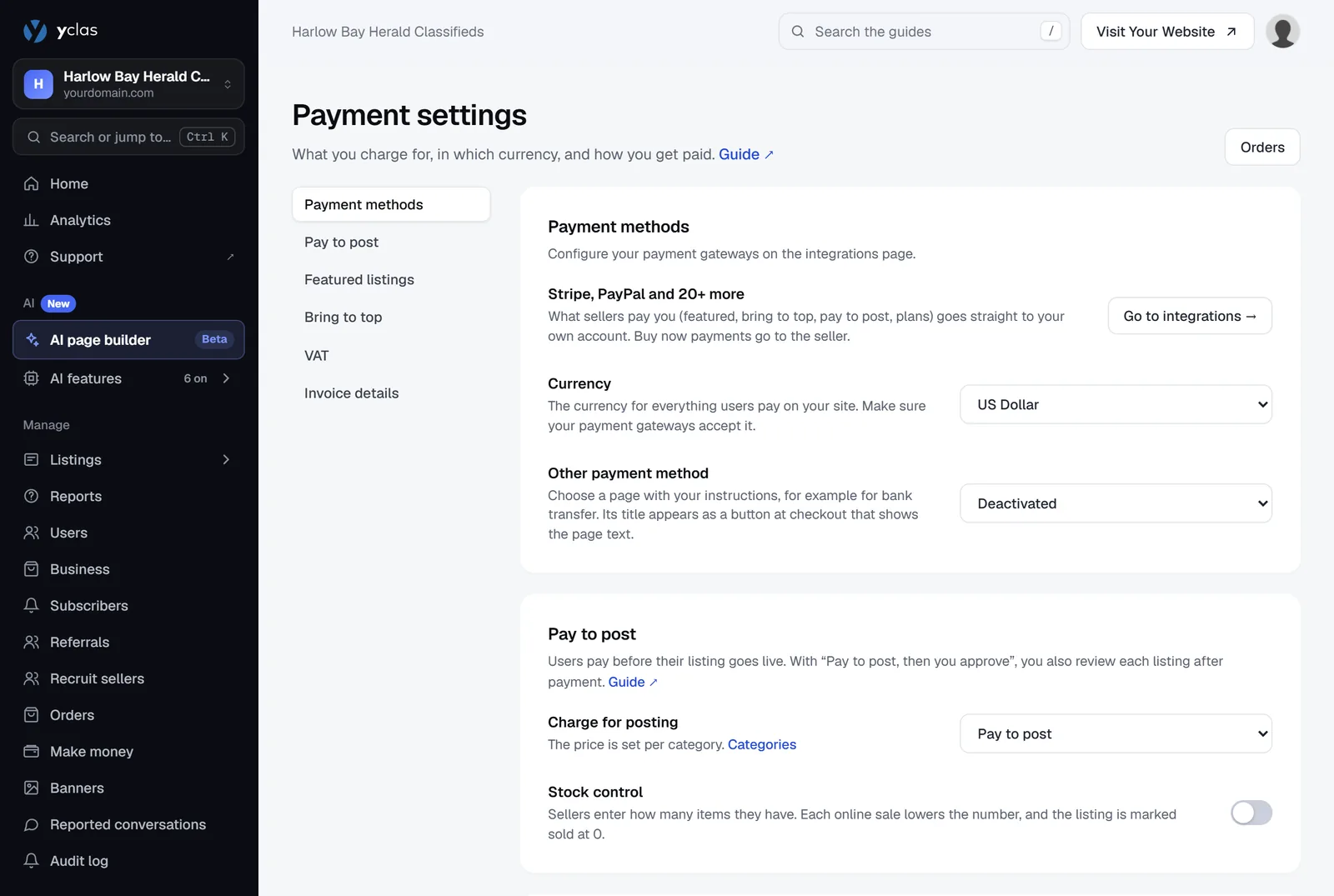
Pick a real currency that your payment provider accepts in your country. Stripe and PayPal reject payments in a currency they don’t support for your account.
The payment Currency list also contains a few entries that are only display formats (Euro in spanish format, US Dollar (No decimals), Euro (No decimals)). Don’t use those as a payment currency: choose Euro or US Dollar instead.
When the eWallet is on, prices for your extras are shown in wallet credit with your own money symbol, and the payment currency is only used when members buy credit.
Listings in other currencies
By default every listing is priced in your site’s currency. If your members sell in different currencies, add a
currency special custom field so sellers can choose one per listing. That currency is
also used when a buyer pays for the item with Buy Now.
To show visitors an approximate price in their own currency, add the currency converter widget.
Related guides
- Take payments on your marketplace — the rest of Settings › Payments.
- General settings — the other Regional settings, such as date format and time zone.
- Special-purpose fields — a currency per listing.
Was this guide helpful?
Thanks for letting us know.
Sorry it didn’t help. or ask our support team: tell us what you were looking for.
Updated 16 October 2026 · Suggest an edit