

Create your marketplace
Sign up on yclas.com, answer a few questions and get a working marketplace with a 15-day free trial, no credit card needed.
Creating a marketplace on Yclas takes about a minute. You answer a few short questions, and Yclas builds a site that already fits your niche: the right language, currency and time zone, starter categories and, in most cases, an About page, a homepage headline and a few example listings to show how things will look.
Every new site comes with a 15-day free trial. You don’t need a credit card to start, and nothing is charged unless you choose a plan.
Create your site
- Go to yclas.com and click the button to create your website (or open yclas.com/create-website.html directly).
- What do you want to build? Choose Classifieds (people post listings and contact each other directly), Marketplace (buyers pay online and you earn a commission on each sale), I already have a site (you are moving an existing marketplace to Yclas) or Not sure yet. You can change your mind later.
- What will people list? Pick the closest fit, such as Vehicles, Property, Equipment and machinery, Jobs, Services, Items for sale, Things for rent, Business directory or Something else. Yclas sets up categories to match, and switches on the vehicles, property or equipment pack for those choices. For equipment you’re also asked Selling, hiring or both?.
- What’s your niche? Describe it in a few words, for example “vintage guitars and amps” or “used farm machinery in Kenya”. The more specific you are, the better your starting site. This becomes your site’s description.
- Where, and in which language? Check the Country and Site language Yclas has filled in for you. The country sets your currency and time zone; the language is used for your site and its emails.
- Name your marketplace. Type a name. Underneath you’ll see the address it will get, such as
fretboardexchange.yclas.com, and whether it’s available. Use at least 5 letters or numbers. - Save your marketplace. Enter your email address, or click Continue with Google. If you already have a Yclas account, log in and Yclas finishes creating the site for you.
Yclas then builds your site and opens the Your marketplace is ready page.
You can also start from the Pricing page: Start free trial under any plan opens the same sign-up. Already know which plan you want? Click Or pay now and skip the trial under it instead: you name your marketplace, click Continue to payment and pay for the plan at the checkout, with no trial.
If the step-by-step sign-up doesn’t load (it needs JavaScript), use the Use the simple form instead link. It asks only for a name and your email; you can set the language, currency and categories yourself afterwards.
What Yclas sets up for you
While the “ready” page is showing, Yclas works through your answers. Depending on your niche and language, it can:
| What | Where to change it later |
|---|---|
| Site name and description | Settings › General — see General settings |
| Site language, currency and time zone | Settings › General — see Language and translations and Currency and price format |
| Email templates in your language | Email — see Email templates |
| Categories, with subcategories and icons | Listings › Categories — see Categories |
| Extra listing fields for your niche (for cars: make, year, mileage…) | Listings › Custom Fields — see Custom fields |
| A homepage headline, photo and accent colour | Design — see Themes |
| An About page | Pages — see Pages |
| Example listings | Listings › All listings — see Manage listings |
Want a different look? Browse the templates, each a complete home page made for a trade. You can switch your site to one from the page builder.
On the ready page you can also Pick a photo for your homepage from a small selection, then click Use this photo.
The example listings end with a sentence saying they are examples. They make your site look lived-in while you set it up, but delete or replace them before you invite real members.
If you chose “I already have a site”
Yclas still sets your site’s name, language, currency and time zone, but skips the starter categories and the example content, because your own listings are on their way. When your admin opens (or you click Open my admin), you land on Move your site to Yclas, ready to upload the export from your old platform. See Move your site to Yclas.
Your first login
When the setup is done, click Open my admin (or Go to my admin). You’re signed straight into the admin panel of your new site.
We also email you your login details. Keep that email: it has the address of your site and how to sign in. If you don’t see it, check your spam folder.
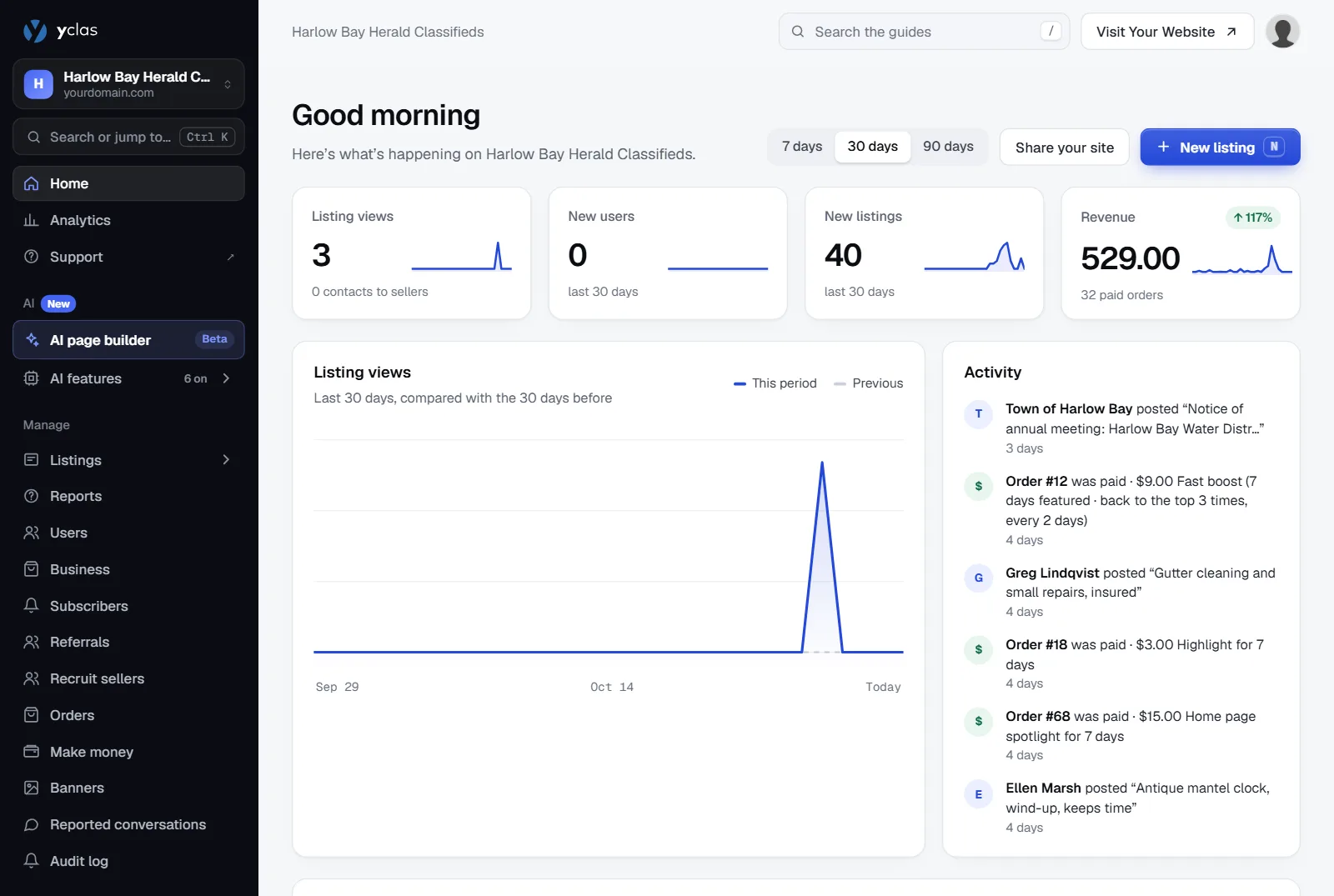
From now on you can reach your site’s admin in two ways:
- Go to your site’s address and sign in with your email address and password.
- Sign in at yclas.com, open My sites and click Open admin next to the site.
What to do next
Your site is live as soon as it’s created, at its .yclas.com address. During the free trial it’s hidden from
search engines, so only people you share it with find it.
The first time you open the admin panel, Set up your site asks two quick questions (what people list on your site, and how a deal happens) and then takes you through the launch steps for your kind of site, one card at a time: your categories, your logo, your first five listings, sharing your site and anything your answers need, such as payments or bookings. Skip any step for later; the dashboard keeps track of what’s left. See Set up your site.
If you’d rather keep the site hidden while you work on it, switch on maintenance mode.
During and after the trial
The admin panel’s sidebar shows how many days of your trial are left, with a Choose a plan link. When you’re ready, pick a plan to keep the site online. Everything you set up during the trial stays as it is.
If the trial ends without a plan, the site is paused. You can come back and choose a plan within 30 days without losing anything. See Plans and billing.
Creating another site
You can run several marketplaces from one Yclas account. Sign in at yclas.com, open My sites and click New website. See My sites.
Related guides
- A tour of the admin panel — find your way around.
- Launch checklist — what to do before you invite members.
- Plans and billing — the trial, plans and payments.
- Connect your own domain — swap the
.yclas.comaddress for your own.
Was this guide helpful?
Thanks for letting us know.
Sorry it didn’t help. or ask our support team: tell us what you were looking for.
Updated 28 October 2026 · Suggest an edit