

Make money with the guided set-up
Use the Make money page to choose what sellers pay for, connect a payment method and follow what you earn, all in one place.
Make money is the quickest way to start charging on your marketplace. In about two minutes it walks you through what sellers can pay for, with suggested prices, connects Stripe or PayPal, and switches everything on in one go. Once you charge for something, the same page shows what you have earned.
You find it in the admin sidebar under Manage, just below Orders. Until your site charges for anything, your dashboard also shows a Start earning from your marketplace card that opens it.
Make money saves the same settings as Settings › Payments, Categories and the Subscriptions and payment pages in Add-ons. You can use whichever you prefer: a change made on one page shows on the others.
Set it up
- Click Make money in the sidebar.
- How you earn: choose Charge sellers, or Not yet to keep everything free for now. Click Continue.
- What sellers pay for: switch on the options you want and adjust the suggested prices (see below). Click Continue.
- Get paid: paste your Stripe Publishable key and Secret key, or enter your PayPal email, or both. Choose the Currency sellers pay in and click Continue.
- Review: check the list and click Save and switch on.
You land on a summary, You’re set up to earn, that lists what is on, with the prices and the payment methods sellers can use. Change something opens the steps again. If boosts are on, See what sellers see previews the boost page your sellers get, without creating an order.
What sellers can pay for
Step 2 lists every paid option. Each one has its own guide with the details:
| Option | What sellers get |
|---|---|
| Boosts (recommended) | Up to three ready-made packages that mix featured days and moves back to the top. See Boosts and promotions. |
| Featured listings | A badge, first place in results and a spot on the home page, for a number of days. Enter up to four lengths with their prices. See Featured listings. |
| Bring to top | A one-off payment to move a listing back to first place. See Bring to top. |
| Pay to post | A price to post in some categories; the others stay free. Enter the price next to each category. See Pay to post. Business prices (Professional and Marketplace plans) are set on each category’s own page; see Private and business accounts. |
| Seller plans | Monthly plans with a number of listings, for dealers and agents (Professional and Marketplace plans). See Membership plans. |
| Offer promotions while posting | A Make it stand out step in the post form. On unless you switch it off. See Promotions while posting. |
| Urgent and Highlight | A red Urgent label or a coloured card, for a number of days. See Urgent and Highlight. |
| Home page spotlight | One of a few paid places in a row at the top of your home page. See Home page spotlight. |
| Sponsored in search results | One of a few places above the results of their listing’s category, labelled Sponsored. See Sponsored in search results. |
| Sell banners | Not only for sellers: anyone signed in buys a banner for your ad slots, for a number of weeks, and you approve it. See Sell banners to advertisers. |
| Paid renewal | Renewing a listing that is about to expire or has expired, for a small price. See Paid renewal below. |
| Unpaid checkout reminders | Not something sellers buy: an email that brings back sellers who didn’t finish paying. See below. |
| Promotions included in plans | Shown when Seller plans is on: featured listings and moves to the top included in each plan. See Plan credits. |
| Quote requests | Shown on a business directory: businesses pay for the quote requests visitors send them, per request or out of their plan. See Free or paid. |
| Ad slots | Not paid by sellers: places for banners or AdSense in the Nova theme. See Banners and ad slots. |
Everything is off until you switch it on, except Offer promotions while posting, which only matters once you sell boosts or other promotions. The prices shown are suggestions in your site’s currency: change them to suit your market.
Things to know before you save
- You need a way to get paid. Without Stripe, PayPal or another payment provider, Save and switch on stays greyed out while a paid option is on, and paid options are left off. Other providers are set up in Add-ons (the Other payment providers link in step 3).
- Stripe keys are checked. The Publishable key starts with
pk_and the Secret key withsk_(orrk_for a restricted key). If a key is missing or the two are swapped, nothing is saved and a message tells you why. - Seller plans need an active plan. If your site has no plans yet, the wizard offers three to create (Free, Pro seller and Dealer), which you can rename and reprice. Seller plans stay off if there is no active plan, and you’re warned if there is no free one, because then everyone has to pay before posting.
- Pay to post keeps your category prices when you switch it off, so switching it back on brings them back. It also keeps whether new listings are reviewed before they go live.
- Not yet switches off every paid option, including seller plans: everyone can then post for free.
Your earnings
As soon as your site charges for something, the top of the Make money page shows Your earnings:
| Figure | What it shows |
|---|---|
| Last 30 days | What sellers paid you, with the total for the last 90 days below it. |
| New listings promoted | The share of new listings in the last 30 days that were featured or boosted. |
| Paid seller plans | How many sellers are on a paid plan now. |
| Unpaid checkouts | Checkouts started but not paid in the last 30 days, with their value. Click it to open Orders. |
Below it, a table splits your revenue by product (boosts, featured, bring to top, pay to post, seller plans, renewals, Urgent and Highlight, spotlight, sponsored places, banners) for the last 30 and 90 days. Sales between members are left out, because that money belongs to the sellers, and only payments in your site’s currency are counted.
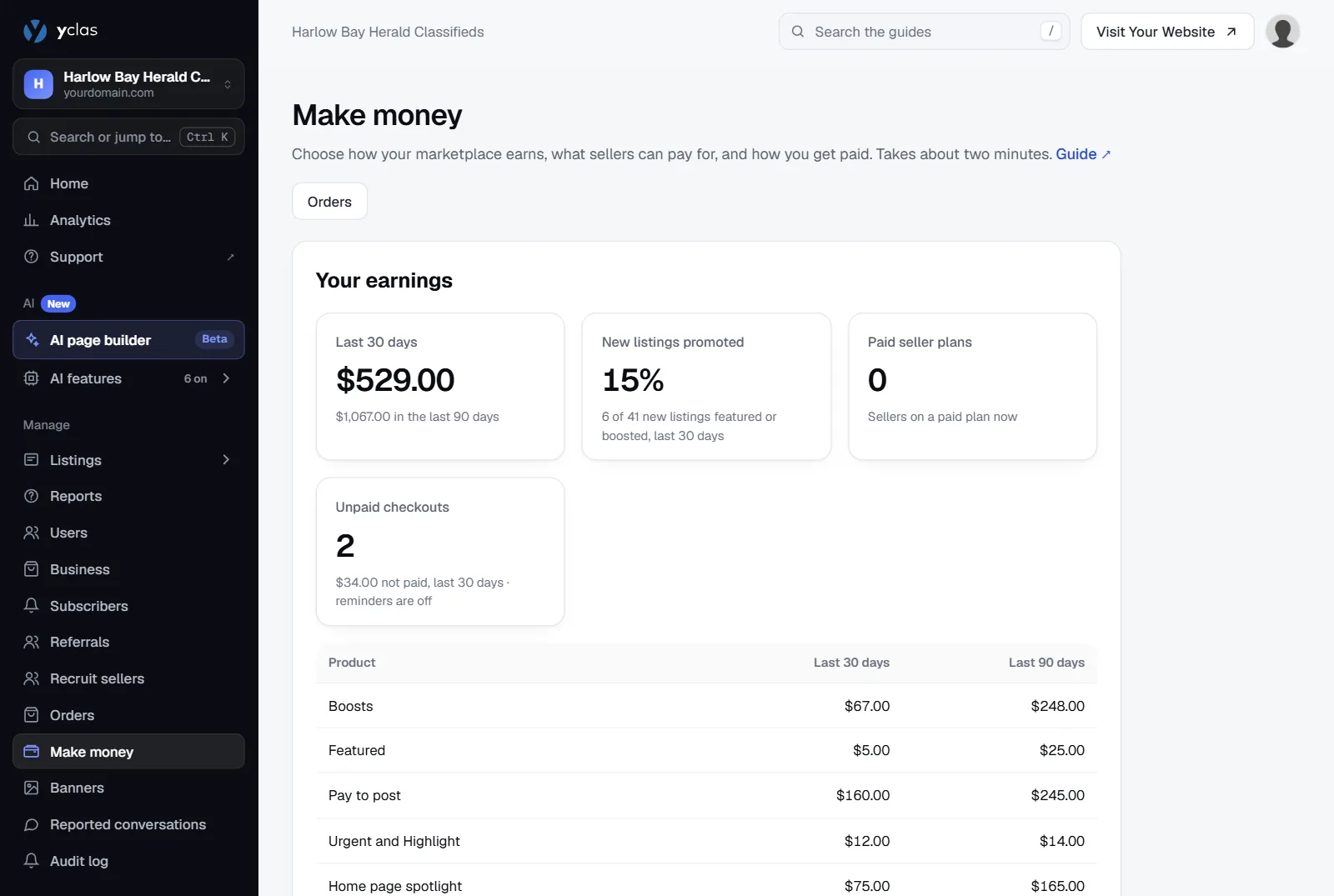
For every single payment, use Orders, opened by the Orders button at the top of the page.
Take a commission on sales
Lower on the Make money page, the Take a commission on sales card is about the other way to earn: a share of what buyers pay your sellers with Buy Now. It appears on the Marketplace plan, or once Stripe Connect is switched on in Add-ons › Stripe, and shows whether it’s on with your commission, and what you earned in the last 30 days. Manage (or Set up) opens the Commission on sales page. See Stripe Connect and Commission and service fees.
In the wizard’s How you earn step, Commission on sales shows On or Set up → and opens the same page. On other plans it shows a Marketplace plan label and links to your plan instead.
Paid renewal
When a listing is about to expire or has expired, your site already emails the seller. With Paid renewal on, those emails also offer to renew the listing for a price you set, and to renew it with a boost if you sell boosts.
- In Make money, step 2, switch on Paid renewal.
- Enter the Price. If your listings expire after a set number of days, a renewed listing stays online that many days again, like a new one. Otherwise (for example when sellers pick their own expiry date), enter the Days added.
- Optionally switch on Only paid renewal (see below).
- Finish the steps and click Save and switch on.
After paying, an expired listing is back online straight away, and a live one gets its new expiry date. Sellers can also renew from the listing itself in the Nova theme: a renewal offer appears on the listing page and Renew the listing in the menu of My Listings, from a week before the listing expires.
| Setting | What it does |
|---|---|
| Price | What a renewal costs. Paid renewal stays off with a price of 0. |
| Days added | How long a renewed listing stays online. Only asked when your listings don’t expire after a set number of days. |
| Only paid renewal | Expired listings can only come back online by paying. Off: sellers can still reactivate them for free from My Listings. |
If your listings never expire, there is nothing to renew: the wizard tells you so and links to the setting for how long listings stay online. See Listing expiry and renewal.
The offer is added at the end of the ad-to-expire and ad-expired emails. To place it yourself, edit those
templates in Email templates and use [URL.RENEW] (the renewal link),
[RENEW.DAYS] and [RENEW.PRICE]. Once a template contains [URL.RENEW], the offer is no longer added
automatically.
Unpaid checkout reminders
Some sellers start paying for a promotion or for posting and never finish. Unpaid checkout reminders emails them about an hour later and again a day later, with a link straight back to the payment.
- In Make money, step 2, switch on Unpaid checkout reminders.
- Optionally enter a Coupon code to give them a reason to come back. Create the coupon first in Coupons: a code that doesn’t exist or is switched off is left out.
- Finish the steps and click Save and switch on.
Reminders cover posting fees, featured listings, bring to top, boosts, renewals, Urgent, Highlight and the spotlight, not membership plans or sales between members. Only checkouts started after you switch reminders on are emailed. No reminder is sent if the seller has since paid or started a new checkout for the same listing, if the listing is gone, or if the seller unsubscribed from emails.
The email is the checkout-reminder template. It appears in Email templates once the first reminder has been sent, and you can then change its wording.
Related guides
- Boosts and promotions — boost packages, Urgent, Highlight, spotlight and promotions while posting.
- Take payments on your marketplace — connect Stripe, PayPal and other providers.
- Orders and transactions — every payment, refunds and offline payments.
- Commission and service fees — earn from sales between members.
- Ways to make money from your marketplace — which models suit which marketplace.
Was this guide helpful?
Thanks for letting us know.
Sorry it didn’t help. or ask our support team: tell us what you were looking for.
Updated 27 October 2026 · Suggest an edit