

The Tools page
Everything under Tools in the admin panel — your sitemap, the cache, moving your site in, exporting everything and the jobs your site runs on a schedule.
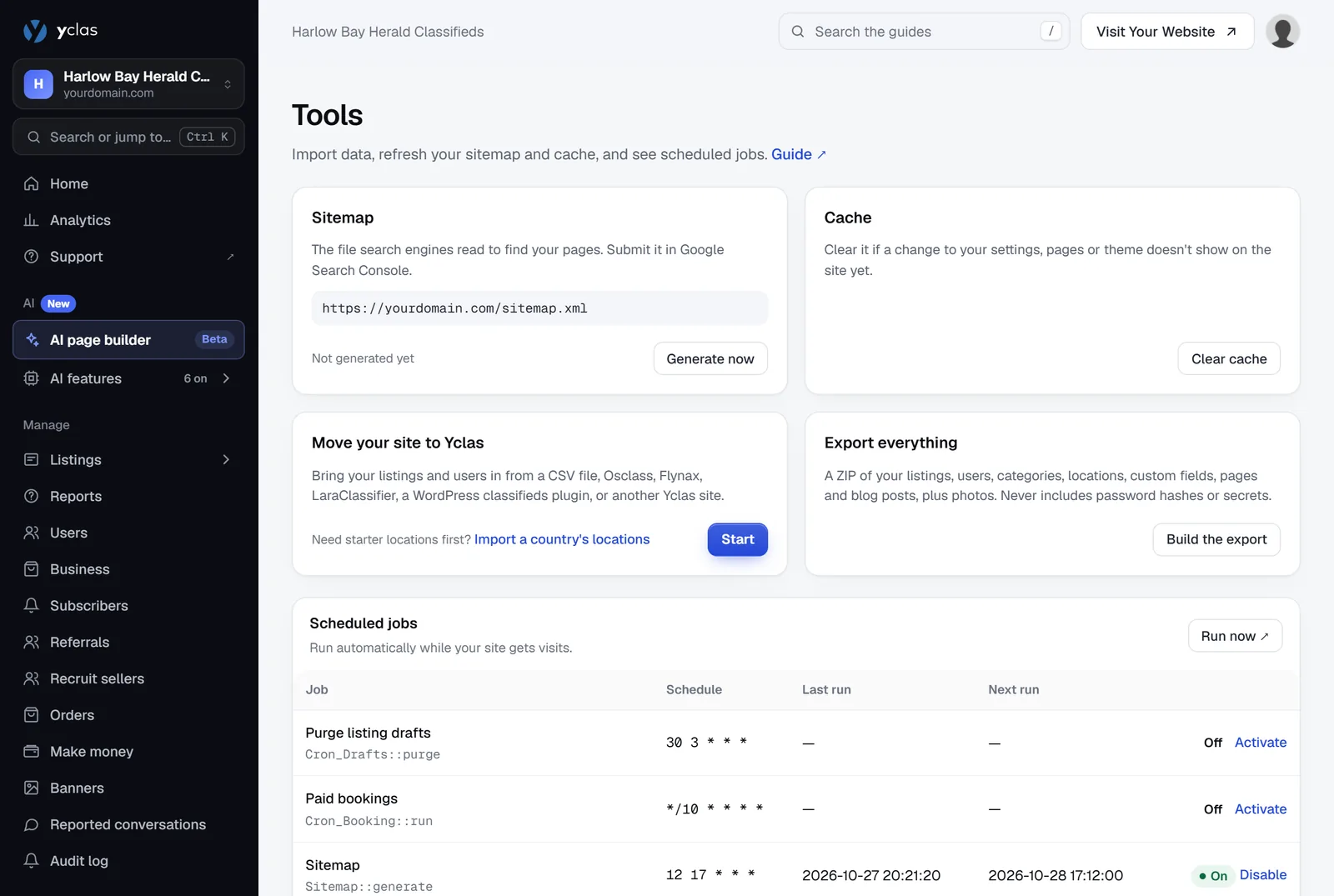
The Tools page collects the housekeeping jobs of your marketplace on one screen. Open it from the sidebar of the admin panel: Tools. You don’t need it every day, but it is where you go when you want to bring in data from another site or a spreadsheet, download a copy of everything, tell Google about your pages, or make a change show up straight away.
The page has four cards and a table.
Sitemap
The address of your sitemap, the file search engines read to find your pages, with the date it was last generated. Copy the address into Google Search Console, and click Generate now if you have just added a lot of listings and don’t want to wait for the daily refresh.
Read more in Sitemap.
Cache
Your site keeps ready-made copies of things it shows often, such as the category tree and your settings, so pages load fast. If a change doesn’t show on the site yet, click Clear cache.
Read more in Cache and My changes don’t show up.
Move your site to Yclas
Brings listings and members in from a CSV file, Osclass, Flynax, LaraClassifier, a WordPress classifieds plugin or another Yclas site. It can also turn pasted text (posts from a Facebook group or WhatsApp chat) into listings, add businesses from a Google Places search, and, with the property pack, import a property feed. Click Start, choose where you’re moving from, upload the file, check a preview and run the import. The card shows your last import, and the page lets you undo it for a week.
The Import a country’s locations link under the card opens the import page for categories and locations; to load a whole country’s locations, use Listings › Locations instead. See Import categories and locations.
Read more in Move your site to Yclas, Import listings from a CSV file and Import users from a CSV file, Import businesses from Google and Import from a property feed.
Export everything
Build the export makes one ZIP of your listings, users, categories, locations, custom fields, pages and blog posts, plus photos, to download. It never includes passwords or secrets.
Read more in Back up, export or close your site.
Scheduled jobs
The table at the bottom lists the jobs your site runs on its own: refreshing the sitemap, emailing sellers whose listings are about to expire, sending the email digest, renewing memberships and so on. For each job you see its schedule, when it last ran and when it runs next, and you can Disable or Activate it.
Read more in Scheduled jobs.
What isn’t on this page
A few things people look for under Tools live elsewhere:
| You want to… | Go to |
|---|---|
| Import categories or locations | Listings › Categories or Listings › Locations — see Import categories and locations. |
| Export your users or listings to a spreadsheet | Users › Export CSV or Listings › All listings › Export CSV — see Export users. |
| Export your newsletter subscribers | Subscribers › Export CSV. |
| See your traffic | Analytics — see Analytics. |
Related guides
- Move your site to Yclas — import from another platform or a CSV file.
- Sitemap — what’s in it and how to submit it.
- My changes don’t show up — when clearing the cache is the answer, and when it isn’t.
Updated 22 October 2026 · Suggest an edit